Quick answer: To install OnStream on Firestick, install the free Downloader app from the Amazon Appstore, turn on Settings > My Fire TV > Developer options > Install unknown apps for Downloader, then open Downloader, enter the OnStream APK link or Downloader code, and press Install. The whole process takes about five minutes.
Table of Contents
- Step 1: Install the Downloader App
- Step 2: Allow Downloader to Install Unknown Apps
- Step 3: Download and Install OnStream
- Step 4: Open OnStream and Add It to Your Home Screen
- Best OnStream Settings for Fire TV
- Which Fire TV Devices Work?
- How to Update OnStream on Firestick
- OnStream Firestick Problems and Fixes
- Firestick FAQs
What you need
- A Fire TV Stick (2nd gen or newer), Fire TV Stick 4K / 4K Max, Fire TV Cube or a Fire TV smart TV
- About 100 MB of free storage
- A stable internet connection (10 Mbps or more for 1080p)
- The Fire TV remote
Step 1: Install the Downloader App
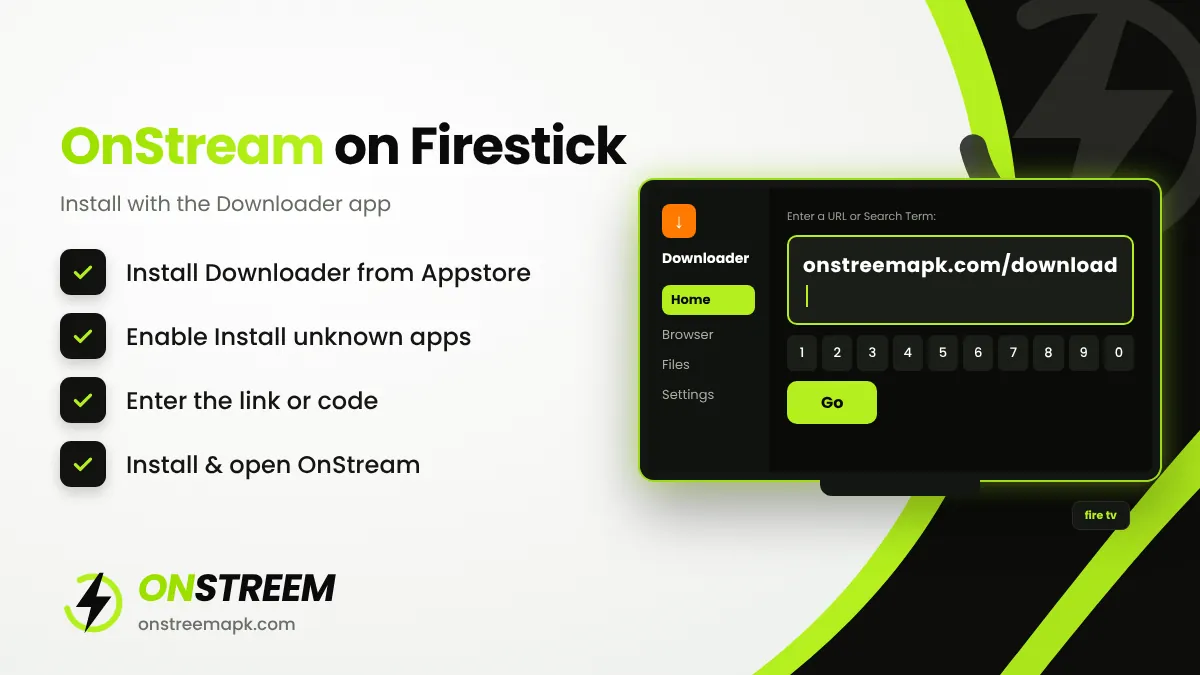
Downloader is a free, trusted app made by AFTVnews that lets your Fire TV download files from the internet.
Open Find
On the Fire TV home screen, go to Find (the magnifying glass) and select Search.
Search for Downloader
Type Downloader with the on-screen keyboard and choose it from the suggestions.
Install it
Select the orange Downloader app and press Get or Download. Wait for it to install.
Step 2: Allow Downloader to Install Unknown Apps
Fire TV blocks apps from outside the Amazon Appstore by default. You need to allow Downloader once.
Open Settings
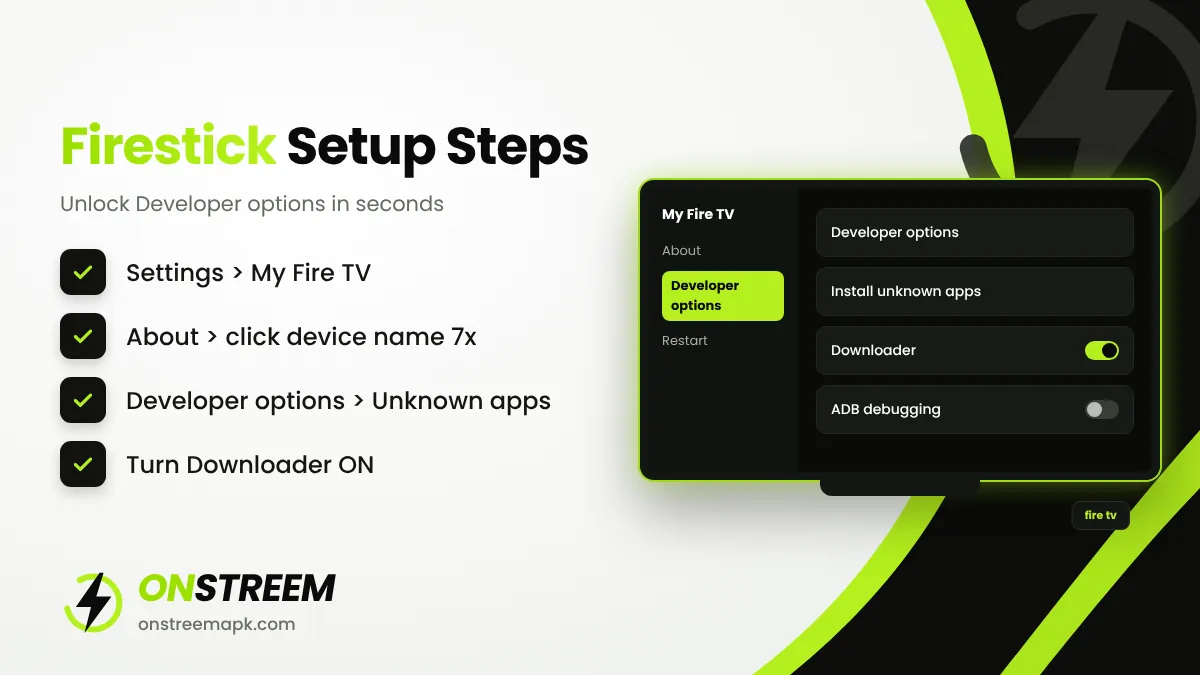
Go to Settings (gear icon) > My Fire TV.
Find Developer options
Select Developer options. If you do not see it, open About, select your device name (for example "Fire TV Stick 4K") seven times until you see "You are now a developer", then press Back.
Turn on unknown apps
Select Install unknown apps and switch Downloader to ON. On older Fire OS versions this option is called Apps from Unknown Sources.
Step 3: Download and Install OnStream
Open Downloader
Launch Downloader and press Allow when it asks for access to files.
Enter the link or code
In the Home tab, click the URL box and enter the URL onstreemapk.com/download/. Then press Go.
Start the download
When the page opens, click the download button for OnStream APK v1.2.0. The file (about 17.6 MB) downloads in a few seconds.
Install
An install screen appears. Select Install, wait, then select Done.
Delete the installer file
Downloader will offer to delete the APK. Choose Delete twice. The app stays installed and you save storage.
Step 4: Open OnStream and Add It to Your Home Screen
Press and hold the Home button on your remote and select Apps. OnStream is at the bottom of the list. Highlight it, press the Menu button (three lines) and choose Move or Move to front so it appears on your home screen.
When you open OnStream for the first time, give it a few seconds to load the catalogue. Use the remote's arrow keys to browse, select a title, choose a server and quality, and press play.
Best OnStream Settings for Fire TV
- Quality: choose 1080p on Fire TV Stick 4K or 4K Max. On older sticks, 720p is smoother.
- Player: if videos stutter, try a different player option in OnStream's settings, if your build offers one.
- Storage: Fire TV sticks have limited space. Avoid offline downloads on the device and clear OnStream's cache every few weeks (Settings > Applications > Manage Installed Applications > OnStream > Clear cache).
- Connection: use the 5 GHz Wi-Fi band or an Ethernet adapter for fewer buffering problems.
Which Fire TV Devices Work?
| Device | Works with OnStream? | Notes |
|---|---|---|
| Fire TV Stick 4K / 4K Max | Yes | Best experience, 1080p plays smoothly |
| Fire TV Stick (2nd/3rd gen), Lite | Yes | Use 720p if videos buffer |
| Fire TV Cube | Yes | Fast and reliable |
| Fire TV smart TVs (Fire OS) | Yes | Same steps as the stick |
| Devices running Vega OS | No | Newer Vega OS models do not support Android APK sideloading |
To check your system, go to Settings > My Fire TV > About. If it says Fire OS, you can install OnStream.
How to Update OnStream on Firestick
OnStream does not update itself through the Amazon Appstore. When a new version is released, open Downloader again, enter the same link or code, and install the new APK on top of the old one. Your favourites stay saved. Check our download page to see the current version number.
OnStream Firestick Problems and Fixes
| Problem | Fix |
|---|---|
| Developer options missing | Go to About and select the device name seven times. |
| "App not installed" | Free up storage, uninstall old OnStream copies, and try again. |
| Downloader code not working | Type the full URL instead. Codes can change or expire. |
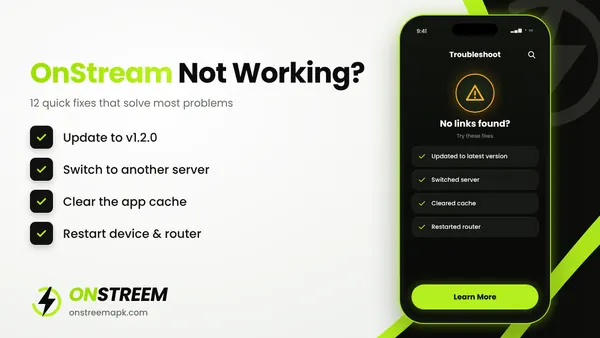
| Black screen or no links | Update to v1.2.0, clear cache, and switch servers. |
| Constant buffering | Lower the quality, restart the stick, and move your router closer. |
For more fixes, read why OnStream is not working.
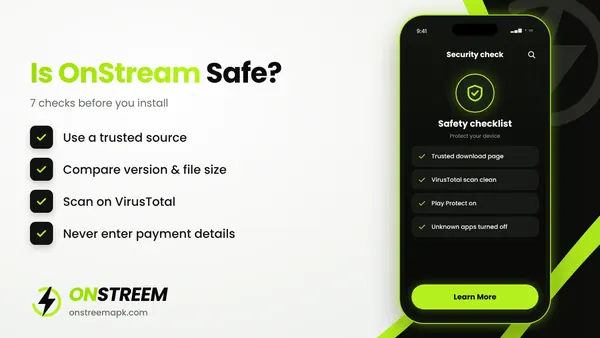
Note: OnStream is not available in the Amazon Appstore and does not hold licenses for most of its content. Read our safety and legal guide before you use it.
Firestick FAQs
Is OnStream available in the Amazon Appstore?
No. You need to sideload the OnStream APK with the Downloader app.
What is the Downloader code for OnStream?
Downloader codes are short numbers that open a web address. Our current code and link are listed in the OnStream Downloader code guide.
Does OnStream work on Fire TV Stick Lite?
Yes. Fire TV Stick Lite runs Fire OS, so you can install OnStream with the same steps. Use 720p for smoother playback.
Why can't I find Developer options on my Firestick?
Amazon hides it on newer software. Open Settings > My Fire TV > About and select your device name seven times to unlock it.
Is it safe to enable unknown apps on Fire TV?
It is safe if you only allow trusted apps like Downloader and only install files you have checked. You can turn the option off again after installing.
Also see: OnStream for Android TV · OnStream APK main guide