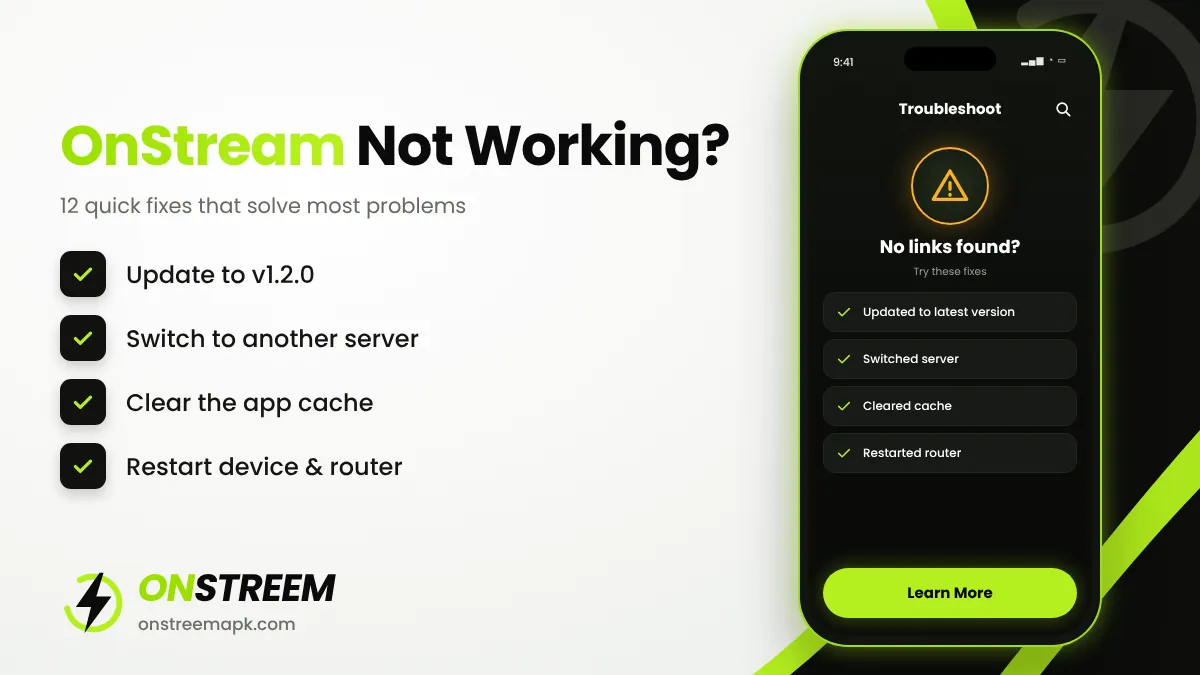
Quick answer: OnStream usually stops working because of an outdated version, a busy or broken server link, or corrupted cache. Update to v1.2.0, switch to another server, clear the app cache, and restart your device and router. If the app says it is disabled or every title fails, the service may be down and you need to wait for an update.
Table of Contents
Is OnStream Down Right Now?
Before changing settings, check whether the problem is only on your device. Signs that OnStream itself is down:
- Every movie and show says "No links found" or keeps loading.
- The home screen is empty or does not refresh.
- The app shows a message such as "This app has been disabled" or asks you to update.
- Other people report the same problem on forums or social media at the same time.
If it is down for everyone, there is nothing to fix on your side. Wait a few hours, then check our download page for a new version. If only some titles fail, the fixes below will help.
12 Fixes for OnStream Not Working
Update to the latest version
Old builds stop loading links when sources change. Install OnStream v1.2.0 on top of your current app. This alone fixes most problems.
Switch servers
Every title has more than one server. If one fails or buffers, go back and pick a different server.
Clear the cache
Go to Settings > Apps > OnStream > Storage > Clear cache. On Fire TV: Settings > Applications > Manage Installed Applications > OnStream.
Clear data (if cache did not help)
Use Clear data or Clear storage. This resets the app, so your favourites may be removed.
Restart device and router
Turn your phone or TV off and on, and unplug your router for 30 seconds. This clears network glitches.
Test another network
Try mobile data instead of Wi-Fi, or the other way round. Some networks restrict certain streaming sources.
Fix date and time
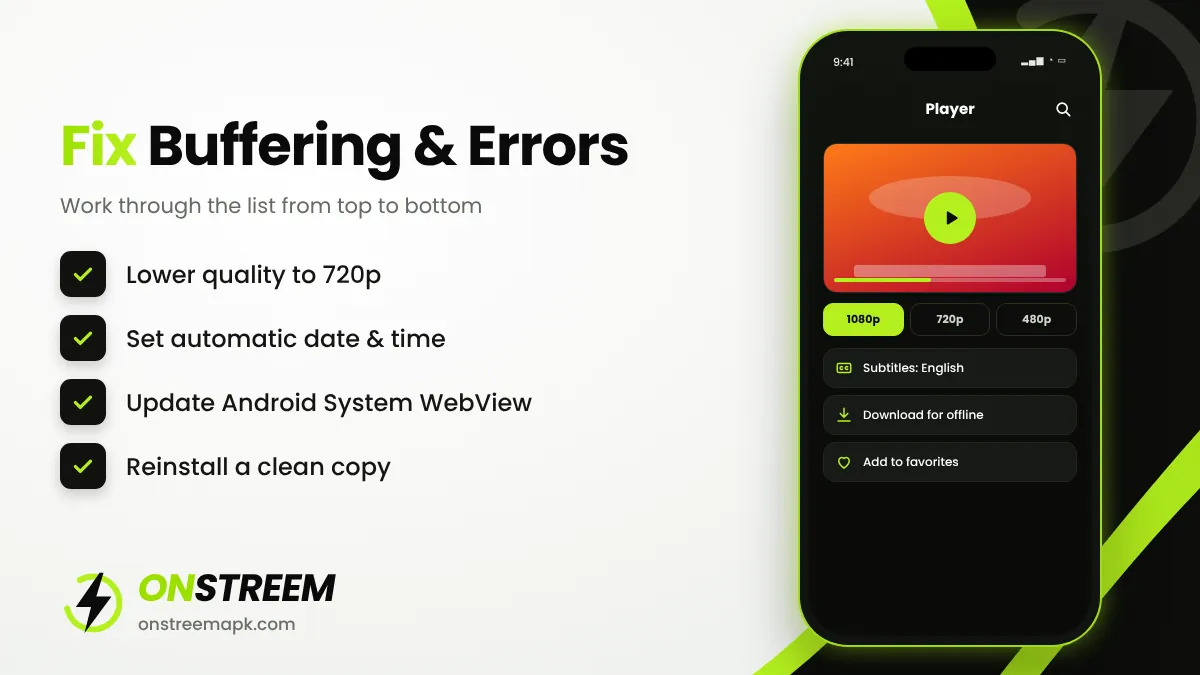
Set Automatic date & time on. A wrong clock breaks secure connections and causes "connection failed" errors.
Update Android System WebView
Update Android System WebView and Chrome from the Play Store. Many apps rely on them to load content.
Free up storage
If your device has less than 1 GB free, apps can crash. Delete old downloads and unused apps.
Lower the video quality
Choose 720p or 480p if videos buffer. 1080p needs at least 10 Mbps.
Change the video player
If your build offers a player option in settings, switch to another one. This fixes black screens with sound only.
Reinstall a clean copy
Uninstall OnStream, restart, and install a fresh APK from a trusted source. Modified copies often break.
Common OnStream Errors and What They Mean
| Error or symptom | Likely cause | Fix |
|---|---|---|
| "No links found" / "No stream available" | Server down or outdated version | Update, switch servers, try later |
| "This app has been disabled" | Old build blocked by the developer | Install the latest APK |
| Black screen with sound | Player or graphics issue | Change player, clear cache, restart |
| Constant buffering | Slow or unstable connection | Lower quality, use 5 GHz Wi-Fi or Ethernet |
| App crashes on open | Corrupt data or low storage | Clear data, free storage, reinstall |
| "App not installed" | Signature conflict or broken file | Uninstall old copy, download again |
| Subtitles out of sync | Subtitle file mismatch | Choose another subtitle track |
| Downloads fail | No storage permission | Allow storage access in app settings |
OnStream Not Working on Firestick
Fire TV sticks have limited storage and memory, so cache builds up faster. Clear OnStream's cache every few weeks, close background apps with Settings > Applications > Manage Installed Applications > Force stop, and restart the stick from Settings > My Fire TV > Restart. If you installed an old version, reinstall it using our Firestick guide.
"OnStream Disabled" Message
Some users see a message that OnStream is disabled or no longer supported. This usually means the version on your device has been retired. Installing the newest APK normally removes the message. If even the newest build shows it, the service may be offline, and switching to an OnStream alternative is the only option until it returns.
How to Prevent Problems
- Check for a new version once a month.
- Do not install "mod" or "premium" copies; read why we avoid mod APKs.
- Keep at least 1 GB of free storage.
- Clear the cache regularly on Fire TV and Android TV.
FAQs
Why is OnStream not working today?
Most often the version is outdated or the server is busy. Update to v1.2.0, switch servers and clear the cache. If every title fails, the service may be temporarily down.
Is OnStream shut down?
OnStream has had periods of downtime, but a temporary outage does not mean it is shut down. Check our download page for the latest working version.
Why does OnStream keep buffering?
Buffering comes from a slow connection or a busy server. Lower the quality to 720p, switch servers, and use a stronger Wi-Fi signal.
Will clearing data delete my favourites?
Yes. Clear data resets the app. Try clearing only the cache first.
Back to the main OnStream APK guide.